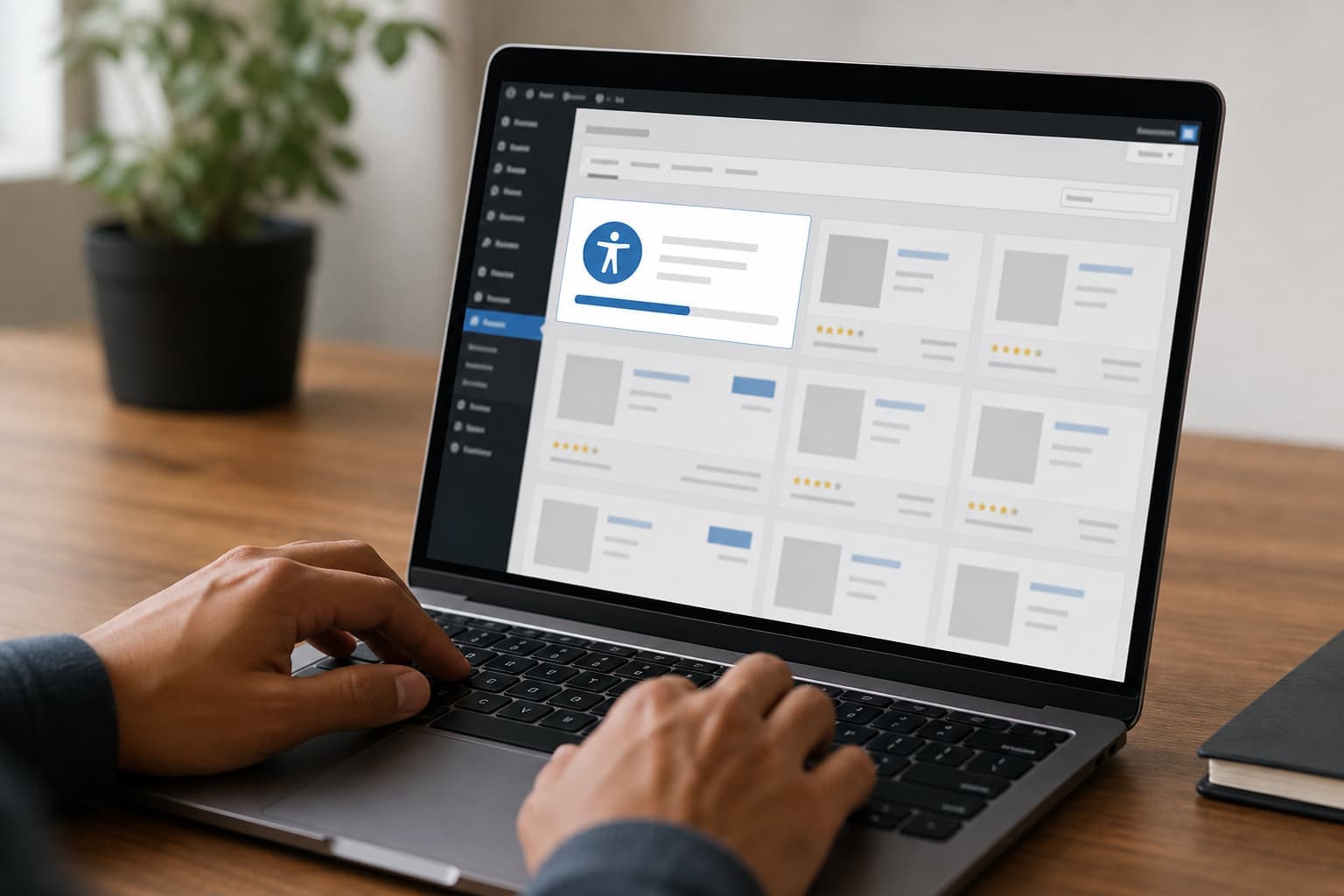
WordPress powers a huge share of the web, and accessibility expectations keep rising for business, education, and ecommerce sites. The fastest way to add visitor-facing accessibility controls to WordPress is the official Inclusense Accessibility Widget plugin — free on WordPress.org, with all settings managed from your Inclusense dashboard.
What you need before you start
- A WordPress site (5.6 or newer)
- Admin access to install plugins
- A free Inclusense account — start a 14-day trial with no credit card required
- An active Inclusense subscription (or trial) to display the widget on your domain
The plugin is free to install. An active subscription powers the widget on your site. Learn more on our WordPress accessibility plugin page.
Step 1: Install the plugin from WordPress.org
Install the official plugin from the WordPress.org plugin directory:
- Log in to your WordPress admin dashboard
- Go to Plugins → Add New
- Search for Inclusense Accessibility Widget
- Click Install Now, then Activate
No theme edits or custom code are required. The plugin loads the widget asynchronously from embed.inclusense.eu after your domain is validated.
Step 2: Connect your WordPress site
After activation, connect your site to Inclusense:
- Visit inclusense.eu and create your account
- Add your website URL in the Inclusense dashboard
- Start your 14-day free trial (no credit card required)
- Your domain is validated before the widget appears on your site
Step 3: Customize the widget from your dashboard
All widget settings are managed in Inclusense — not in WordPress:
- Widget colours, icon, and position
- Custom trigger buttons on your site
- Show or hide individual accessibility tools
- Screen reader support, contrast, multilingual options, and more
Save your settings in the dashboard. Changes apply without updating WordPress or redeploying the plugin.
Alternative: paste the embed script manually
Prefer not to use a plugin? Copy your embed snippet from the Inclusense dashboard and paste it in your theme header or footer. See our general accessibility widget guide for platform-agnostic setup. The plugin is still the recommended path for most WordPress sites.
Test your site after install
After going live, verify the launcher on your homepage, key landing pages, and (if applicable) WooCommerce product and checkout flows. You can also run a free website accessibility check to preview WCAG-oriented issues alongside your widget.
Frequently asked questions
Is the WordPress plugin free?
Yes. The plugin is free on WordPress.org. An active Inclusense subscription is required to display and manage the widget.
Will it slow down my WordPress site?
No. The widget loads asynchronously and is designed for minimal performance impact.
Does it work with Elementor, Divi, and WooCommerce?
Yes. The widget works with modern WordPress themes and page builders because it loads independently of theme markup.
Get started
Install the free WordPress plugin, start your trial, and visit our WordPress accessibility plugin page for features, pricing, and FAQs.